Otter Alongside · A how-to guide
Setting up the care app
Everything on one page — from downloading the app to reading your first visit note. It takes two short emails and usually about a day.

Ten minutes, start to finish.
The care app lets you read each visit's notes, times and completed tasks as they happen — good if you live away, or if several of you want to stay in the loop.
Your relative (or their representative) agrees to app access before we switch it on. If you've already discussed it with the office, you're ready — carry on below. If not, start with a phone call and we'll get it moving.
The whole thing, in four steps
It isn't instant, and that's normal — there's one email each way in the middle.
Let the office know you'd like access, and who for. You may well have done this already.
Search your app store for Access Care Planning and install it.
Open the app and email us a photo of the first screen you see.
Usually the same day. Then you're in.
Step 2 — it isn't called Otter
The app you need is called Access Care Planning — look for the red circle. Searching the app store for "Otter" won't find it.
It's the care system we use rather than something we built ourselves, so it carries their name, not ours. That trips up almost everyone, so if you've already gone hunting and given up, that's why.
Step 3 — the screenshot, and why we need it
 This bit
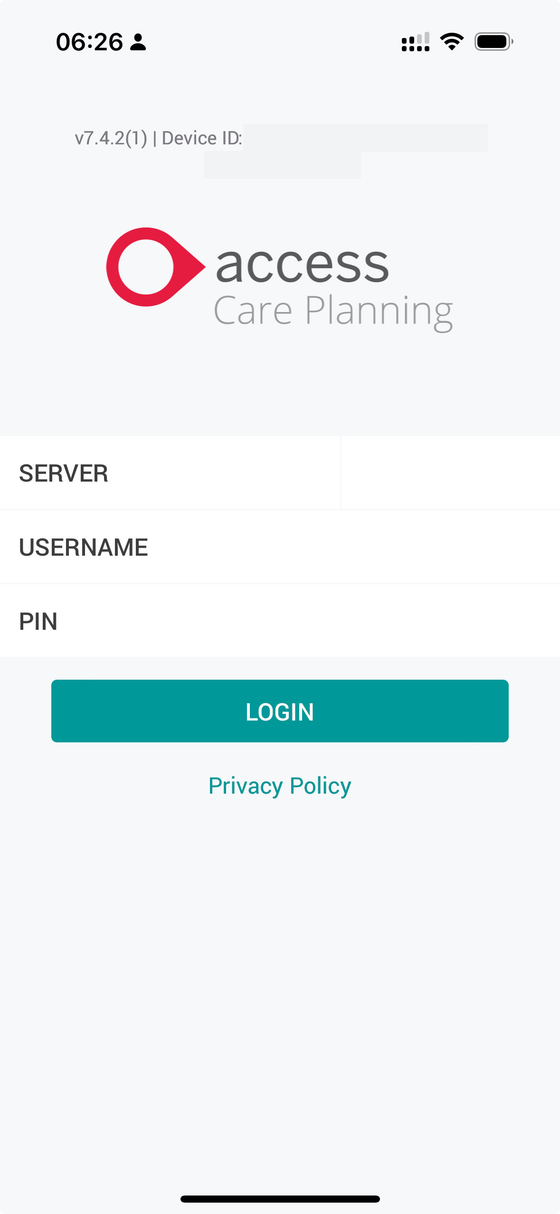
 Open the app and look at the very top of the login screen — there's a line of small text there. That's your device ID, and we can't register you without it. Screenshot that whole screen and email it to hello@otterhomecare.co.uk.
Don't tap the red button. Newer versions show a red "Login with your Access account" button above the boxes. That one's for staff at other organisations — yours are the three boxes underneath.
We never publish login details on this page. They only ever come to you directly, by email.
Logged in? One last step — the bit everyone gets stuck on
Once you're logged in, the app will look empty. That's expected — nothing has gone wrong. You have to follow your relative's records before anything appears.
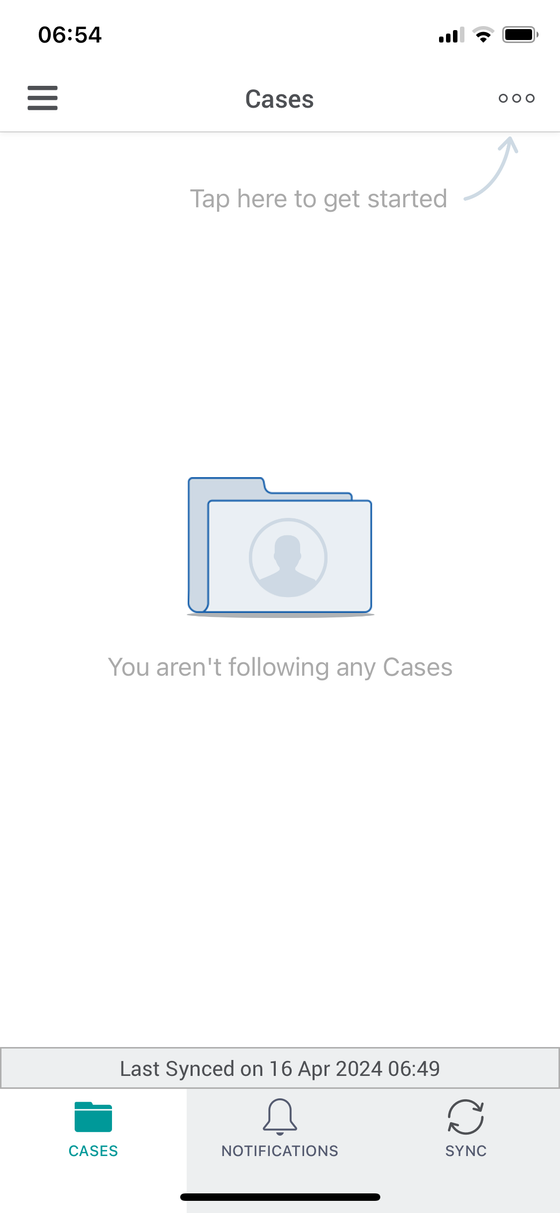
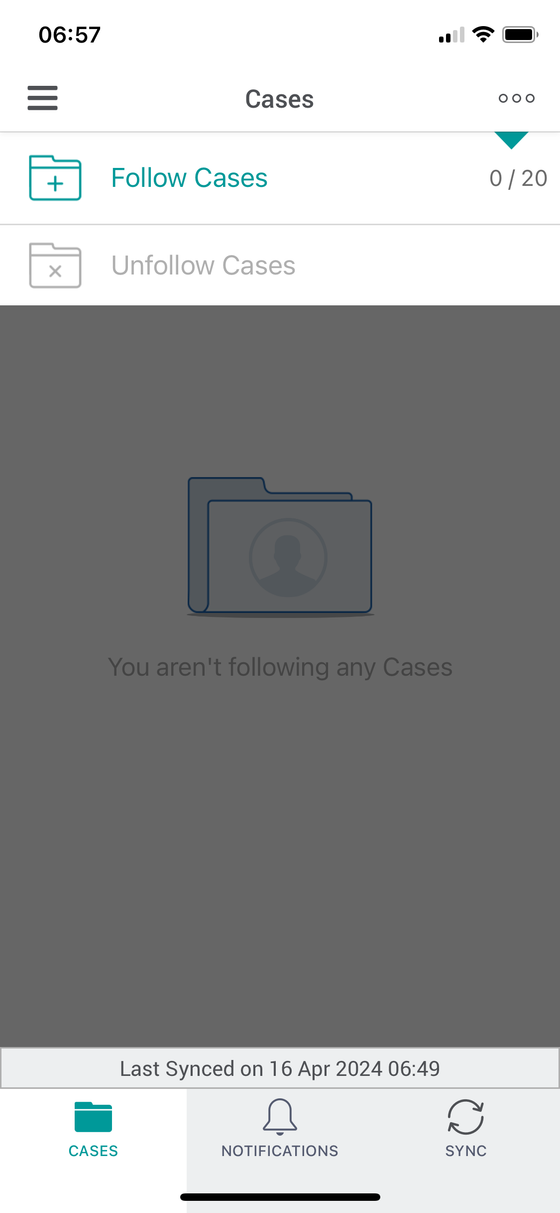
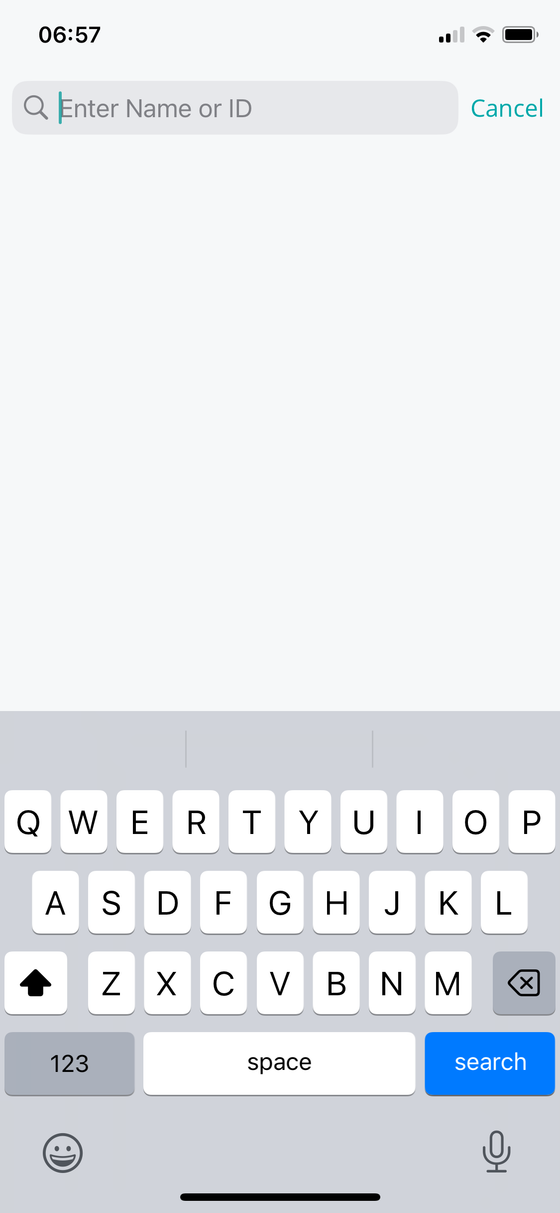
Now you'll see everything. If you've logged in fine and the screen is still blank, it's almost always this step.
What you'll be able to see
 Visits
 Every visit — when your Care Professional arrived and left, which tasks were done, and the notes they wrote afterwards. Written by the person who was actually there, in their own words.
 Case forms
 The fuller picture: the care plan, key contacts, risk assessments, medication changes and notes from reviews.

You'll have view-only access — you can see everything recorded, but not change it. If something looks wrong, tell us and we'll correct it properly, so there's a clear record of what changed and why.
Access is set up for up to three people, chosen by your relative or their representative, and can be removed at any time by asking any of us. You don't need to give a reason.
See it in action
Two minutes inside the app — what you’ll see after every visit.
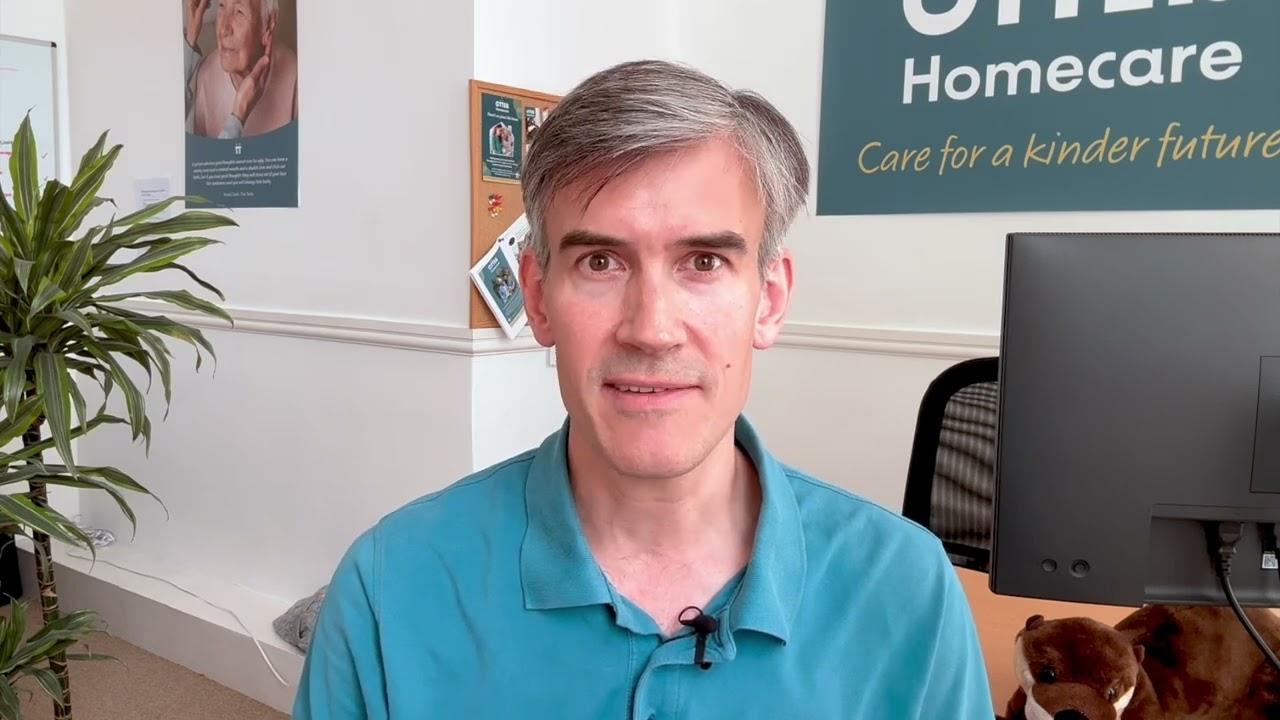 See the Care App in action
 Ring the office and we'll walk you through it on the phone — it usually takes a couple of minutes. And if you'd like the wider picture of the first few weeks of care, it's in Your first month, part of Otter Alongside.